
Description
After restarting the Cloud Host with GUI installed, prompt: Initial setup of CentOS Linux 7 (Core). The following figure shows how to start the Cloud Host?
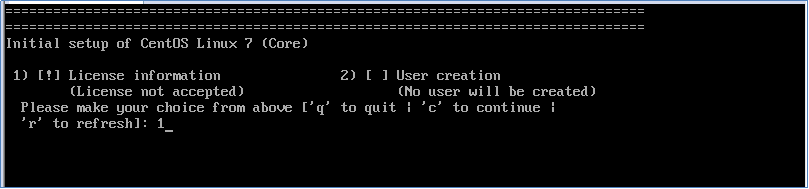
(Cloud host restart prompt: Initial setup of CentOS Linux 7 (Core))
Environment
Cloud Platform Environment: ZStack Enterprise 3.6.0
Primary Storage Environment: Local Storage
Mirror Server Environment: Mirror Warehouse
Network Environment: Flat Network
Cloud Host Operating System : Centos 7.3
Cause
The system administrator's irregular operation on the system caused the cloud host to restart and enter the initial setup page of the CentOS kernel, resulting in the above boot-up display of Initial setup of CentOS Linux 7 (Core).
Resolution
1. CentOS Linux 7 Initial Setup (Core)
1) [!] License Information
(No license accepted)
Please select ['1'to enter license information |'q' to exit |'c'to skip |'r' to refresh]
Enter "1" and press Enter

(select 1 license information)
2. License Information
1) Read the license agreement
[] 2) I accept the license agreement
Please make a choice from above ['q'quit |'c' skip | ' R ' refresh]
Enter "2" and press Enter

(select 2 accept license)
3. License Information
1) Read the license agreement
[x] 2) I accept the license agreement
Please make a choice from above ['q'exit |'c' skip]
Enter "q" and press Enter

(select q exit)
4. Issues
Are you sure you want to exit the configuration process?
If you are sure, you may get an unstable system. The system will restart unless the license agreement is accepted.
Please reply'yes'or'No'
Enter yes and press Enter

(enter yes restart to enter the system)
To sum up, the solution steps are as follows:
Input " 1", Press Enter to confirm
Input " 2", Press Enter to confirm
Input " Q" (Exit), press Enter to confirm
Input " Yes" (Confirm), press Enter to confirm, the system will start automatically
Comments
0 comments
Please sign in to leave a comment.