
Description
Cloud disk capacity on the cloud host is too small plan to expand the cloud disk. Click on the cloud disk to expand on the cloud platform and enter the cloud host to find that the mount point capacity does not change. How to expand the cloud disk with EXT4 file system format correctly?
As shown in Figure 1, the current cloud host data disk size is only 50G, which needs to be expanded to 100G. What do you need to do? Nbsp;
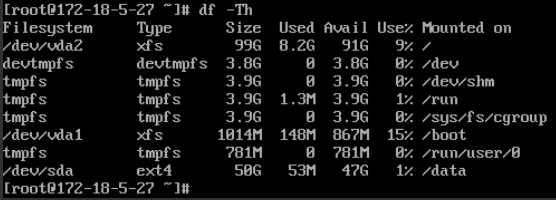
(Figure 1. /dev/sda Data Disk Capacity)
Environment
Cloud Platform Environment: ZStack Enterprise Version 3.10.1
Network Environment: Flat Network
Main Storage Environment: ZStack Enterprise Version Hyper-Fused Storage
Mirror Server Environment: Mirror Warehouse
Cloud Host System: Centos7. 4
Cloud Host File System Type: EXT4
Cause
When you click on a cloud disk to expand on a cloud platform, in fact, the available capacity within the cloud host system does not change immediately, and the file system needs to be expanded.
Resolution
1. Cloud Platform Interface Expansion
Cloud Resource Pool-> Cloud host - > Select cloud host - > Configuration information - > Select Cloud Disk-> Check Need to Expand Cloud Disk-> Operations (Cloud Disk Expansion)

(Figure 2. Cloud Disk Expansion on Cloud Platform)
2. Use the GParted tool for file system expansion.
The GParted tool can be downloaded online on its own. Transfer this tool into a mirror of the cloud platform, and select ISO mirror format, Linux platform, when uploading.

(Figure 3. Upload GParted image to cloud platform)
3. Load the CD-ROM drive. Re-set boot order, select boot from CD drive
Select cloud host - > Configuration information - > Virtual CD-ROM drive-> Operation-> Load ISO

(Figure 4. Loading GParted ISO to the cloud host)
Select cloud host - > Cloud host operations - > Set the startup sequence - > Select the disc in the first order - > Restart Cloud Host

(Figure 5. Cloud host setup boot order)
4. Using the GParted tool
Direct Selection of Default Settings Enter Key

(Figure 6. GParted Interface)

(Figure 7. GParted Setup Interface)

(Figure 8. Setting language)
You can see that the cloud disk size has been expanded to 100G, but 50G is allocated, select / dev/sda at this time; Right-click Check .

(Figure 9. Allocate disks)
Click Apply Apply this setting and click Apply.

(Fig. 10. Changing settings)
Distribution Successful

(Fig. 11. Successful allocation)
5. Restart the cloud host to see disk size
Select cloud host - > Configuration information - > Virtual CD-ROM drive-> Operation-> Uninstall ISO

(Figure 12. Cloud host uninstall ISO)
Select cloud host - > Cloud host operations - > Set the startup sequence - > Select the hard disk in the first order - > Restart Cloud Host

(Figure 13. Cloud host setup hard drive boot)
Console enters the cloud host system, df - Th to see the expansion.

(Fig. 14. Expansion successful)
Comments
0 comments
Please sign in to leave a comment.