
Description
Windows Server 2008 R2 cloud host uses UEFI mode to boot the blue screen of the cloud host. How can I repair it?
Environment
Cloud Platform Environment: ZStack Enterprise Version 3.10.1
Manage Node Environment: Dual Manage Nodes are highly available
Network environment: flat network/VPC network
Main Storage Environment: ZStack Enterprise Version Hyper-Fused Storage
Cloud host BIOS mode: UEFI
Cloud host operating systems: Windows7, Windows Server 2008 R2
Cause
For cloud hosts created by Windows 2007, Windows Server 2008 R2 Mirror BIOS for UEFI boot mode, if the CSM compatibility module is not turned on, the cloud host blue screen may result. Take Windows Server 2008 as an example.
Resolution
1. First check the details of the cloud host page, the BIOS mode of the cloud host, confirm that the BIOS mode of the cloud host is UEFI, and the CSM compatibility module is disabled. As shown in Figure 1:
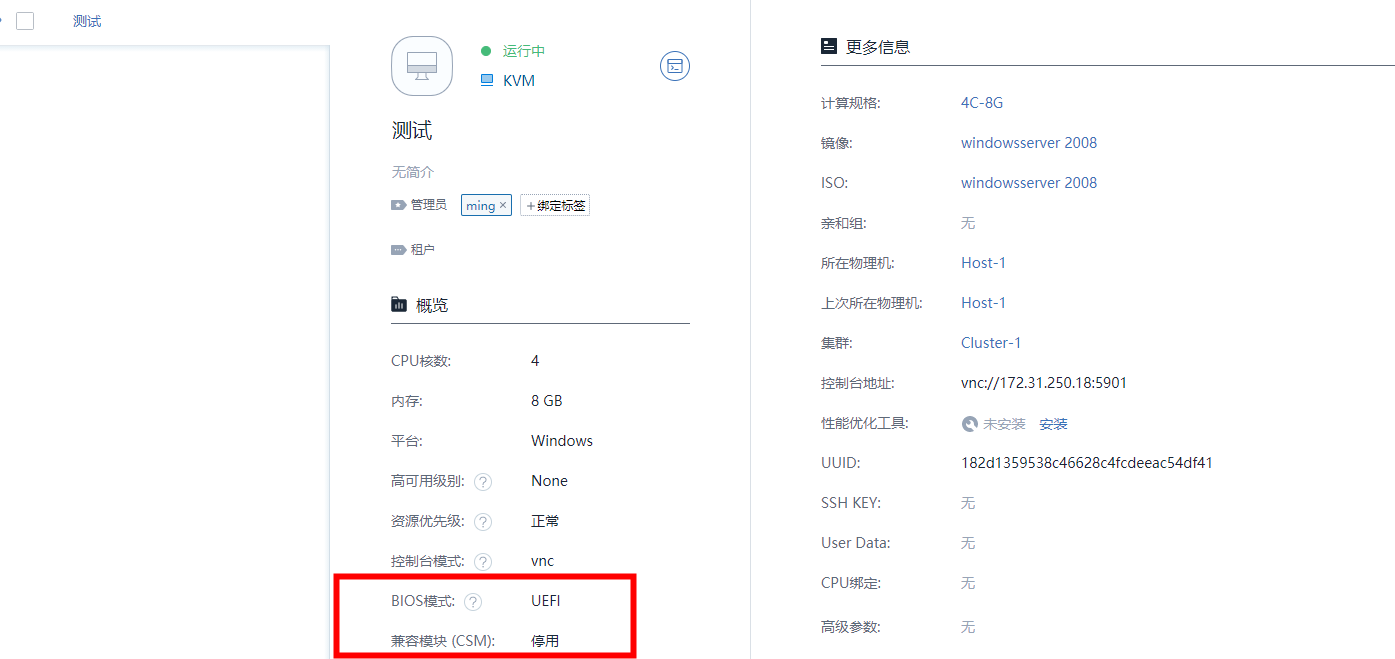
(Figure 1 shows cloud host BIOS mode)
2. Click to modify the BIOS mode, check the CSM compatibility module, and click OK. As shown in Figure 2:
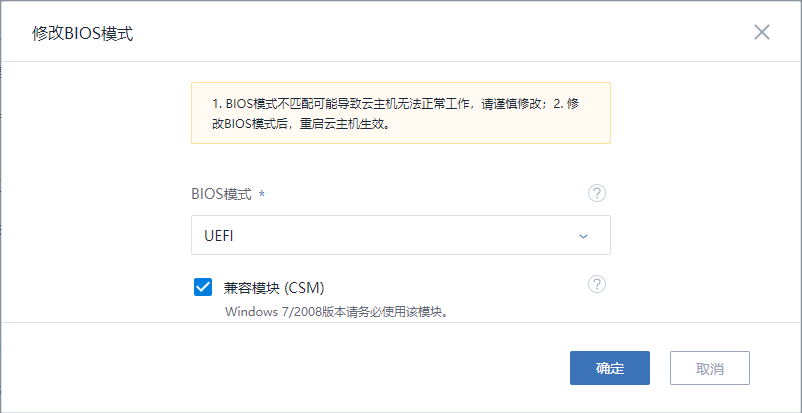
(Figure 2 Modifies BIOS mode to check CSM compatibility module)
3. Restart the cloud host after modification. As shown in Figure 3:

(Figure 3 restarts the cloud host)
4. Open the console and enter the system successfully. As shown in Figure 4:
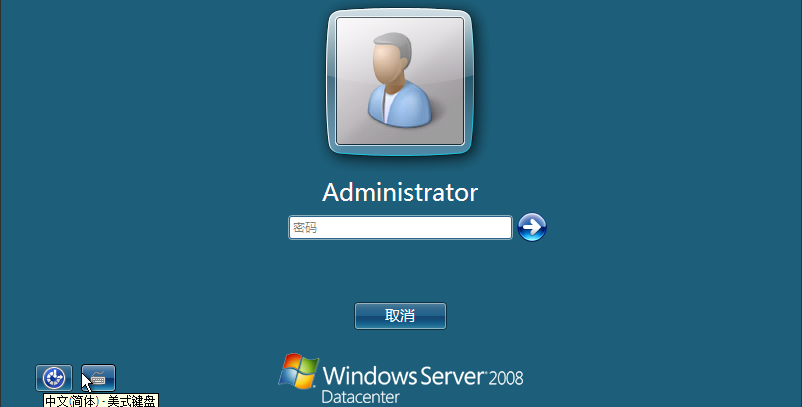
(Figure 4 enters the system successfully)
5. Enter the password and enter the system to view basic computer information. As shown in Figure 5:
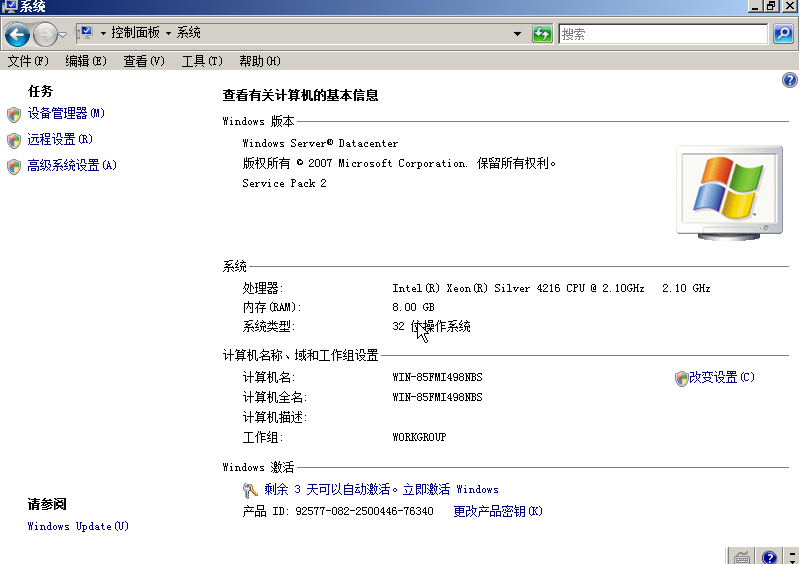
(Figure 5 Computer Basic Information)
Comments
0 comments
Please sign in to leave a comment.