
Description
Linux cloud hosts failed to modify their passwords online. How can I troubleshoot?
Environment
Cloud Platform Environment: ZStack Enterprise Version 4.1.3
Network Environment: Flat Network
Storage environment: ZStack local storage
Cloud Host System: CentOS 7.6 System
Cause
QGA was not installed in advance and ran when password was changedQemu Guest Agent, SELinux not closed.
Resolution
1. InstallationQemu Guest Agent
#yum Install Qemu-guest-agent - Y
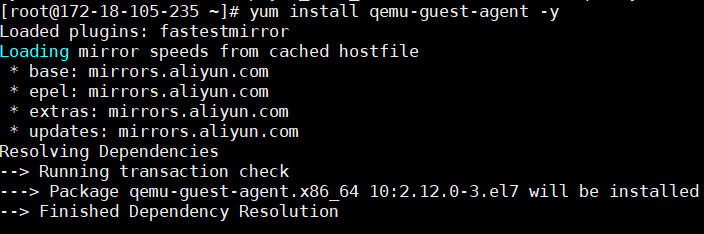
(Figure 1: Installation process)
2. Set Qemu Guest Agent to boot
#systemctl Enable Qemu-guest-agent

(Figure 2: Set self-start)
3. First check if the QGA switch in the cloud host details page is turned on
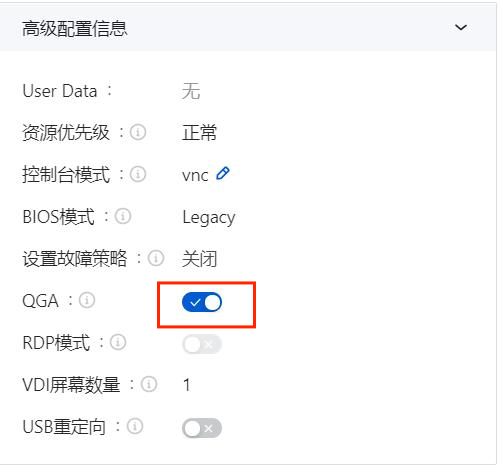
(Figure 3: See if QGA is on)
4. Check whether SELinux is on

(Figure 4: Here SELinux is open)
5. Temporarily close SELinux or permanently close SELinux
#setenforce 0

(Fig. 5: Set temporary shutdown)
#sed - I ' S/SELINUX=enforcing/SELINUX=disabled/g ' / Etc/selinux/config
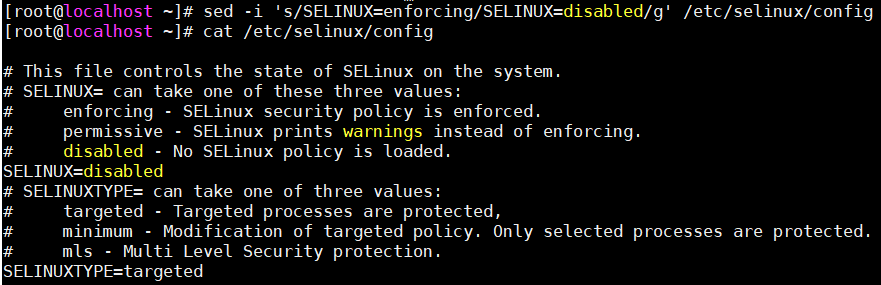
(Figure 6: Modifying the SELinux file)
Test:
1. Click the Cloud Host Operations button

(Fig. 7 Tap Action Button)
2. After clicking on the system configuration, Click to modify the cloud host password
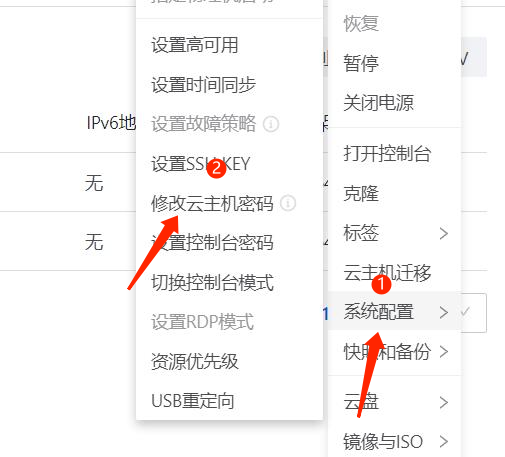
(Figure 8: Online Modify Cloud Host Password Entry)
3. Re-modify the cloud host password
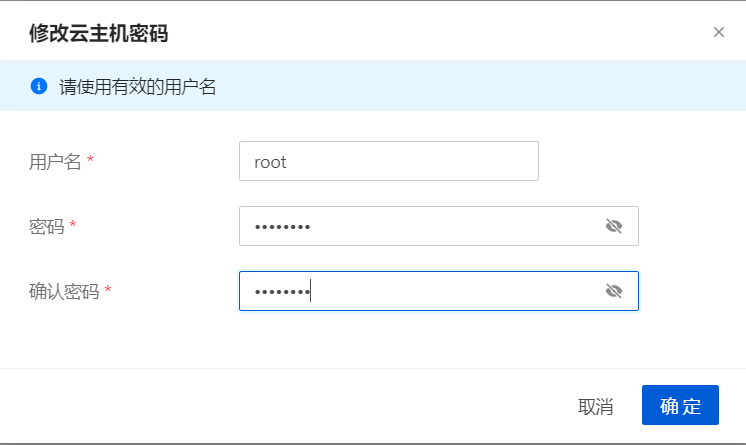
(Figure 9: Enter a new password to set after entering a user name)
4. Successful modification
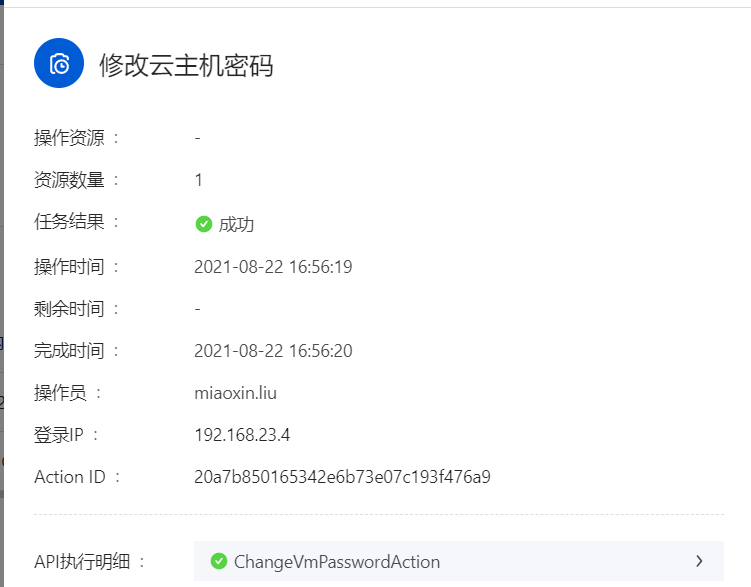
(Figure 10: Cloud host password successfully modified online)
Comments
0 comments
Please sign in to leave a comment.