
Description
Cloud platforms use SharedBlock type primary storage, the underlying docking FC-SAN or IP-SAN storage, when the storage space of primary storage is insufficient, how to correctly expand the current primary storage?
Environment
Cloud Platform Environment: ZStack Enterprise Version 3.10.2
Network environment: flat network/VPC network
Main Storage Environment: SharedBlock
Mirror Server Environment: Mirror Warehouse
Physical Machine Operating System: ZStack Custom Centos7. 6
Resolution
Expansion method on original LUN:
1. Storage vendors will increase the storage space on the SAN storage side of the original LUN.
2. After increasing volume capacity on SAN storage side, log in to the cloud platform management interface, select "Master Storage" in the left navigation bar "Hardware Facilities". Click on the name of the corresponding Master Storage, enter the details page, select the column "Sharing Block", check the Sharing Block, and click "Refresh Capacity" in "Operation" to synchronize the new capacity size.
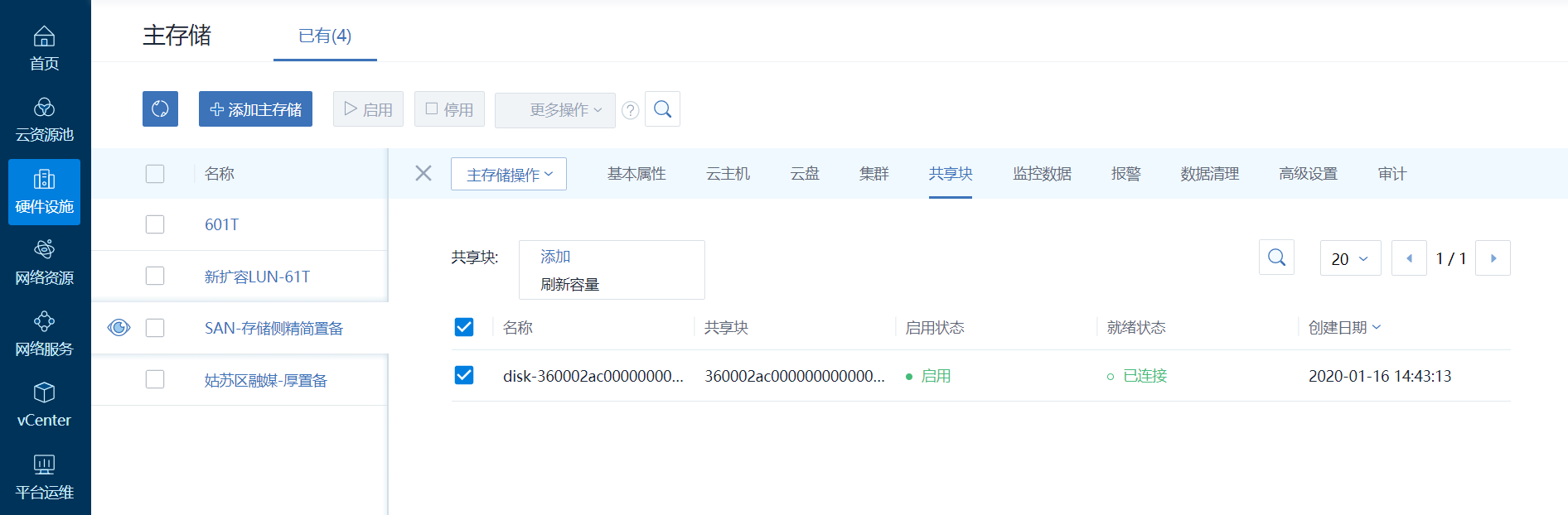
(Fig.1 Refresh block device capacity)
New LUN expansion method:
1. Storage vendors create new LUN devices on the SAN storage side and map the LUNs to the physical machines of the ZStack cluster, which identifies the same LUN devices through multipath multipaths.
If you are expanding the new LUN, create a new volume device on the SAN storage side that maps to all physical machines.
2. ISCSI SAN Storage
Log in to the cloud platform management interface, select SAN Storage in the left navigation bar Hardware Facilities, check the corresponding ISCSI server, and click Synchronize Data in More Actions. By synchronizing data, you can display all the block devices on the UI interface in real time.
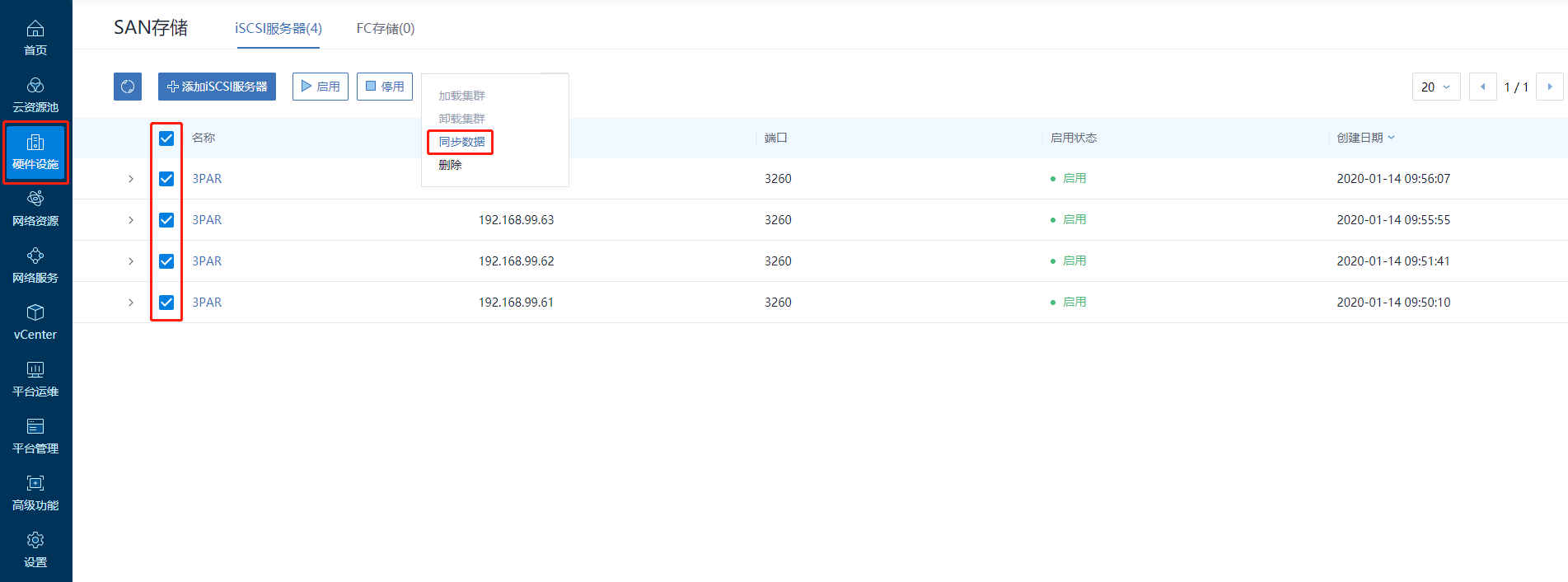
(Figure 2 synchronizes IPSAN storage information)
3. FC SAN Storage
Log in to the cloud platform management interface, select SAN Storage in the left navigation bar Hardware Facilities, switch to the FC Storage page, and click Synchronize Device Information. You can display all the block devices on the UI interface in real time.
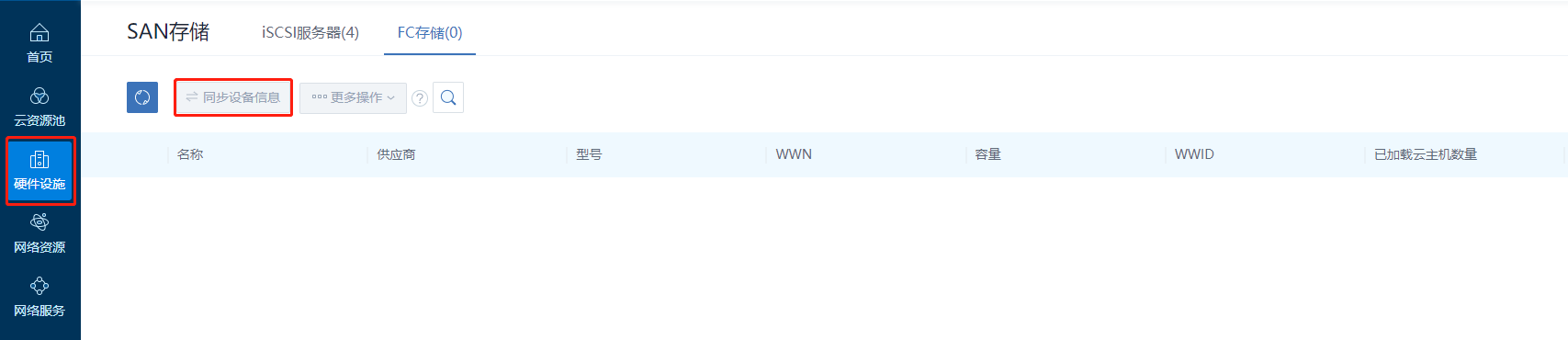
(Figure 3 synchronizes FC SAN storage information)
4. Select "Master Storage" in the left navigation bar "Hardware Facilities". Click the "Add Master Storage" button. On the Add Master Storage page, select the type "SharedBlock". The default storage space allocation policy is "Thick Standby". Fill in the ISCSI storage network, select the shared block, select the new expanded LUN device corresponding to the shared block, and check "Clean Block Device". Click OK to start adding the main store.
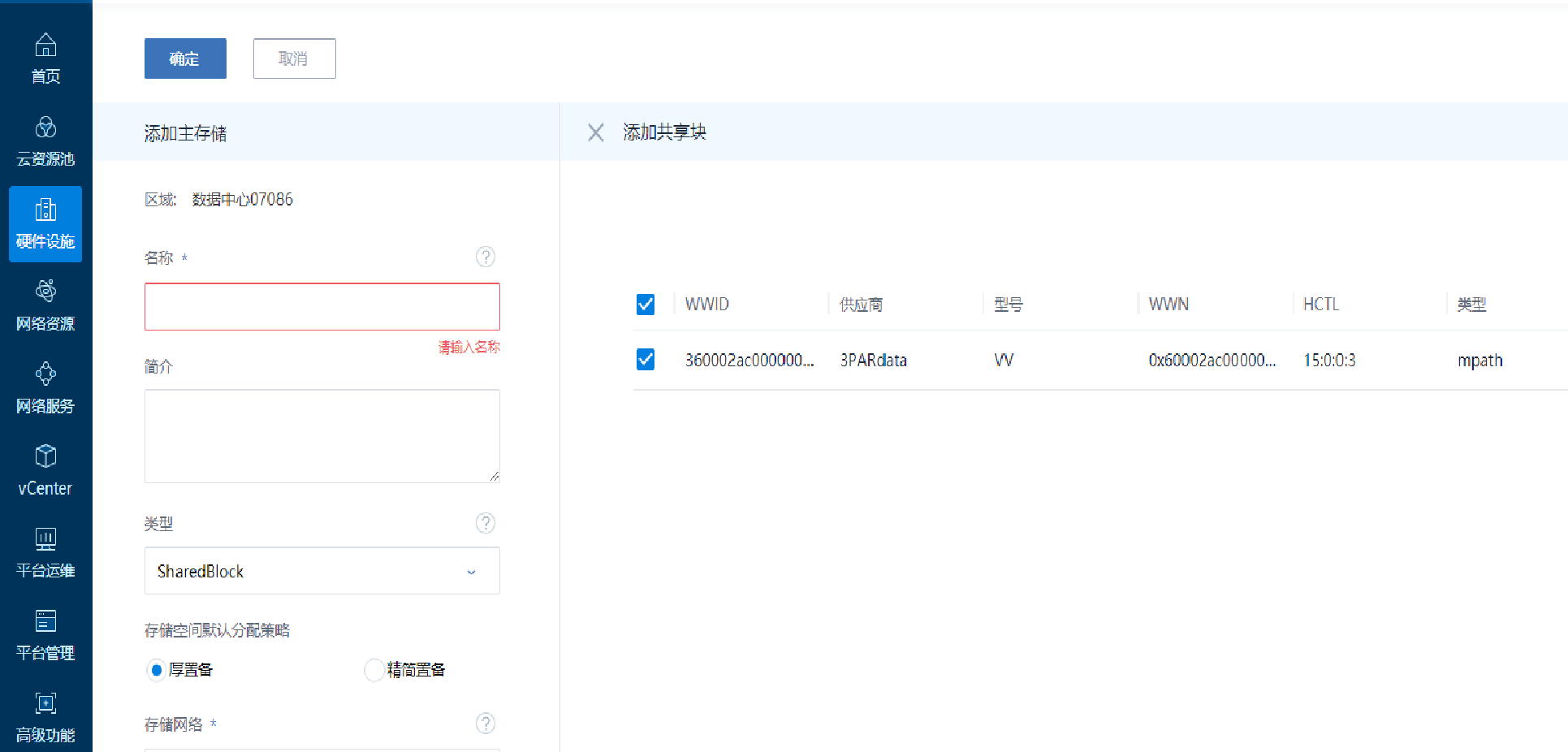
(Figure 4 New SharedBlock Master Store)
Comments
0 comments
Please sign in to leave a comment.